> For the complete documentation index, see [llms.txt](https://manual.fotokite.com/llms.txt). Markdown versions of documentation pages are available by appending `.md` to page URLs; this page is available as [Markdown](https://manual.fotokite.com/fotokite-live-walkthrough/camera-tools.md).

# Camera Tools

The **Camera Toolbar** on the bottom of the screen can be used to call up the **Camera Tools**. The camera tools offer various possibilities and options for the Thermal- and Color-Video.

<figure><img src="/files/XB1CcLctuf3GGO8Vh6Pu" alt=""><figcaption><p>Camera Tools</p></figcaption></figure>

## Thermal Overlay

The Thermal Overlay feature allows for a direct overlay of the thermal camera feed onto the color video feed, providing users with a precise alignment of both feeds. You can enable or disable this feature by either dragging the thermal video into the center of the screen or through the camera tools menu.

<figure><img src="/files/j8r02pOfHdvolexMJUAE" alt=""><figcaption><p>Thermal Overlay</p></figcaption></figure>

## Thermal Overlay Adjust Mode

If you experience any misalignment between the thermal and color video feeds, you can utilize the **Thermal Overlay Adjust Mode** to recalibrate the alignment. To access the Thermal Overlay Adjust mode, tap the four arrows button located in the top-right corner of the thermal image. In case the four arrows button is not visible, simply drag the thermal image to the corner of the screen and back to the center. Then, utilize the arrow keys to adjust the position of the thermal image until it is precisely aligned with the color feed.

<figure><img src="/files/NCVP4SLy94hrIC3bBTYr" alt=""><figcaption><p>Thermal Overlay Adjust Mode</p></figcaption></figure>

<figure><img src="/files/XScd0rHlhDByC2wnoV25" alt=""><figcaption><p>Thermal Overlay Adjust Mode</p></figcaption></figure>

## Thermal Color Scheme

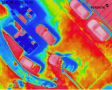
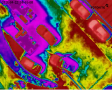
<table data-header-hidden><thead><tr><th width="100"></th><th></th><th></th></tr></thead><tbody><tr><td><img src="/files/7hSq3x16QJsPRP779DVU" alt=""></td><td>White Hot</td><td>Warmer objects are white</td></tr><tr><td><img src="/files/NGVxfvw0KPaxmVwYRVWG" alt=""></td><td>Black Hot</td><td>Warmer objects are black</td></tr><tr><td><img src="/files/D6nXJeihb1fhu5T4SYmD" alt=""></td><td>Rainbow</td><td>Temperature gradient corresponding to ROYGBIV</td></tr><tr><td><img src="/files/DLPAfvlmxrBqpkc2eBgY" alt=""></td><td>RainHC</td><td>Higher contrast version of Rainbow</td></tr><tr><td><img src="/files/Qw91dRopRcss5oUypkfp" alt=""></td><td>Ironbow</td><td>Warmer objects in warm and bright colors</td></tr><tr><td><img src="/files/6U0Q0xXXCNLmfPwDUqZh" alt="" data-size="original"></td><td>Lava</td><td>Middle temperature high contrast version of Ironbow</td></tr><tr><td><img src="/files/1uyk3HAjilOQtHHHh3nt" alt=""></td><td>Arctic</td><td>Extreme temperature high contrast version of Ironbow</td></tr><tr><td><img src="/files/xaaoM2hLtHKs0pzyrUY7" alt=""></td><td>Glowbow</td><td>Warmer objects are shown brighter</td></tr><tr><td><img src="/files/HCgmX2Pk7yuqxWhhG7hk" alt=""></td><td>Graded Fire</td><td>Warmest objects are orange, coldest are blue, version of White Hot </td></tr><tr><td><img src="/files/eaoQiUMN603H2UoWIfMl" alt=""></td><td>Hottest</td><td>Warmest objects are orange, version of White Hot</td></tr></tbody></table>

## Radiometric tools

{% hint style="info" %}
Camera 2nd Generation only
{% endhint %}

The radiometric feature of the IR Thermal Camera for Camera 2nd Generation allows temperatures to be measured using the Thermal Picker or Thermal Max Temperature. Both features can be enabled/disabled in Camera Tools.

**Thermal Picker**

Use Thermal Fullscreen mode to drag the picker and read temperature values.

**Thermal Max Temperature**

Enable Thermal Max Temperature to highlight the highest temperature in the thermal video.

<figure><img src="/files/nQ4lpKysvw0D13XZNDm3" alt=""><figcaption></figcaption></figure>

## Wide View

{% hint style="info" %}
Camera 2nd Generation only
{% endhint %}

The Wide View feature displays a wide-angle color video alongside the zoom slider, providing enhanced visibility and situational awareness during operation. With the improved zoom capabilities of Camera 2, users can easily keep track of their surroundings. By tapping on the wide view, it can be enlarged for better examination. The current field of view is conveniently highlighted with an orange rectangle. To close the wide view, simply tap it again. The Wide View functionality is enabled by default, but can be disabled using the camera tools.

<figure><img src="/files/1NQbEkugsxUGOcqEecNf" alt=""><figcaption></figcaption></figure>


---

# Agent Instructions
This documentation is published with GitBook. GitBook is the documentation platform designed so that both humans and AI agents can read, navigate, and reason over technical content effectively. Learn more at gitbook.com.

## Querying This Documentation
If you need additional information that is not directly available in this page, you can query the documentation dynamically by asking a question.

Perform an HTTP GET request on the current page URL with the `ask` query parameter, and the optional `goal` query parameter:

```
GET https://manual.fotokite.com/fotokite-live-walkthrough/camera-tools.md?ask=<question>&goal=<endgoal>
```

`ask` is the immediate question: it should be specific, self-contained, and written in natural language.
`goal` is optional and describes the broader end goal you are ultimately trying to accomplish on behalf of the user. GitBook uses it to tailor the answer towards what is most useful for that goal.

The response will contain a direct answer to the question and relevant excerpts and sources from the documentation.

Use this mechanism when the answer is not explicitly present in the current page, you need clarification or additional context, or you want to retrieve related documentation sections.