> For the complete documentation index, see [llms.txt](https://manual.fotokite.com/llms.txt). Markdown versions of documentation pages are available by appending `.md` to page URLs; this page is available as [Markdown](https://manual.fotokite.com/fotokite-live-walkthrough/connecting-to-a-fotokite-system.md).
# Connecting to a Fotokite system
Usually, your Fotokite system should connect to the tablet automatically. If this is not possible, or if you want to connect the tablet to another Fotokite system, use **System Connect**.
Open **System Connect** by tapping the **Connect Fotokite Button** (or System Menu > System Connect).
Available Fotokite systems are displayed. You can find **Fotokite Systems** on the top. If you connect to a Fotokite system for the first time, you need to select the system (fkGXXXB\_5) from the list of **Other Networks**. In this case, also make sure to change your Wi-Fi password to keep your system secure. Visit [#change-wi-fi-password](#change-wi-fi-password "mention") for more details.
If a connection is successful, the **System Connect Screen** is shown. Here you can check and manage your connection status, including Internet over Wi-Fi and Internet over Mobile Data (See [Connecting to the Internet](/fotokite-live-walkthrough/connecting-to-the-internet.md)).
More advanced options can be found in the upper right corner of the screen.
{% hint style="info" %}
More information on troubleshooting connection issues can be found in [Wi-Fi Connection Issues](/troubleshooting/troubleshooting-general-issues/wi-fi-connection-issues.md) and [Cannot Find Ground Station in System Connect](/troubleshooting/troubleshooting-general-issues/cannot-find-ground-station-in-system-connect.md)
{% endhint %}
## Change Wi-Fi Password
To change the Wi-Fi password of your **Fotokite System**, open the Advanced Settings in System Connect.
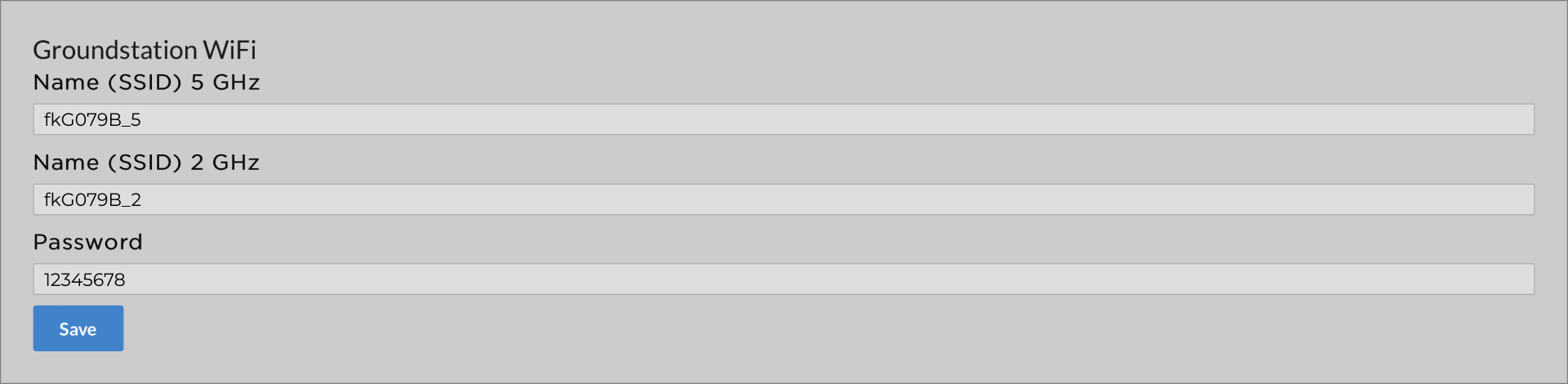
Groundstation Wi-Fi in Advanced Settings
Under **Groundstation Wi-Fi**, both the Wi-Fi names (5GHz and 2GHz) and the password can be changed and saved. After changing the password, please tap on **Forget this System** (System Connect > Options) and reconnect.
## Change Wi-Fi Regulatory Domain
It is important that the country set in Wi-Fi Regulatory Domain corresponds to the actual location of the Fotokite system in order to comply with local telecommunication regulations.
If this setting is incorrect, the Fotokite system might bring up its Wi-Fi access point in frequency bands or transmission powers which are not legal to use in your country.
To change the Wi-Fi Regulatory Domain of your Fotokite System, open the Advanced Settings in System Connect and find the Wi-Fi Regulatory Domain section. Select the location of the system in the dropdown and tap the save button.
---
# Agent Instructions
This documentation is published with GitBook. GitBook is the documentation platform designed so that both humans and AI agents can read, navigate, and reason over technical content effectively. Learn more at gitbook.com.
## Querying This Documentation
If you need additional information that is not directly available in this page, you can query the documentation dynamically by asking a question.
Perform an HTTP GET request on the current page URL with the `ask` query parameter, and the optional `goal` query parameter:
```
GET https://manual.fotokite.com/fotokite-live-walkthrough/connecting-to-a-fotokite-system.md?ask=&goal=
```
`ask` is the immediate question: it should be specific, self-contained, and written in natural language.
`goal` is optional and describes the broader end goal you are ultimately trying to accomplish on behalf of the user. GitBook uses it to tailor the answer towards what is most useful for that goal.
The response will contain a direct answer to the question and relevant excerpts and sources from the documentation.
Use this mechanism when the answer is not explicitly present in the current page, you need clarification or additional context, or you want to retrieve related documentation sections.